Best Photo Organizers for Mac: Free & Paid Compared (2026)

Auf Deutsch lesen: Fotoverwaltungsprogramme für Mac: kostenlose und kostenpflichtige Optionen (2026)
Independent evidence: Softpedia tested Zush for Windows, rated it 4.5/5, and highlighted reusable naming controls and local-model support.Customer rating: Zush is rated 5.0/5 from 5 ratings in the US Microsoft Store.
Jump to section
Quick answer: organizing photos on a Mac is two separate jobs, and they need different software. For managing the library — browsing, albums, faces, duplicates — Apple Photos is the best choice for most Mac users because it is built in and works naturally with iPhone libraries. For ordinary Finder folders, Zush names photos from their content and can sort them into folders with AI (beta). Use Auto grouping or describe the subjects in Folder rules, then review the names and destinations. Leave sorting off and keep the original destination to rename in place.
Within the library job, choose Mylio Photos when one private library must span Macs, phones, PCs, and external drives; Lightroom or Capture One when organization belongs inside a serious editing workflow; Excire Foto for local AI search without a subscription. Photo Mechanic Plus is covered below for existing archives; it is no longer sold for new catalogs.
There is no single best program for every photo library. Personal iPhone memories, a 200,000-image family archive, and a working photographer’s RAW catalog need different organization models. The useful question is not only “which app has the most features?” It is where you want the source files to live, how you expect to find them, and whether editing or retrieval is the main job.
Comparison checked: September 4, 2026; Zush sorting, links, and Photo Mechanic Plus availability updated September 28, 2026. Capabilities and prices were checked against vendor-owned product, support, and pricing pages. Plans and system requirements change, so confirm them before buying.
Official sources checked: Apple Photos support, Adobe Lightroom organization and plans, Mylio Photos and its help center, Capture One Pro and pricing, Excire Foto, and Photo Mechanic Plus with the Camera Bits store. Zush facts come from the product documentation, Mac page, and photo-renaming workflow.
Best photo organizing software for Mac: quick comparison
| App | Best fit | Organization model | Search and AI | Pricing model |
|---|---|---|---|---|
| Apple Photos | Personal and iPhone libraries | Managed Photos library, albums, people, places | People & Pets, recognized content, duplicates | Included with macOS; iCloud storage optional |
| Adobe Lightroom | Editing plus cloud access | Cloud library, albums, stacks, ratings, keywords | Content search, People, natural-language and metadata filters | From $11.99/mo on an annual plan; 1TB |
| Mylio Photos | Private libraries across devices and drives | Local-first library that can preserve folders | On-device face recognition, AI search, map, calendar, duplicates | Free app; Photos+ subscription for broader sync and backup |
| Capture One Pro | Professional RAW and tethered workflows | Catalogs or project-based Sessions | Smart Albums, filters, ratings, keywords, culling tools | Subscription or perpetual desktop license |
| Excire Foto 2027 | Local AI search and culling | Standalone local catalog | Content, face, scene, text, mood, duplicate, and quality search | One-time purchase; 14-day trial |
| Photo Mechanic Plus | Fast ingest and metadata-heavy archives | Catalogs spanning folders, drives, and offline media | Metadata search, filters, saved searches, collections | No longer available for new purchase |
This table compares different product classes rather than one universal ranking. Apple Photos and Mylio manage personal libraries, Lightroom and Capture One combine organization with editing, and Excire and Photo Mechanic Plus focus on catalog retrieval. Zush is covered separately as an organizer for ordinary Finder files: it combines descriptive names with optional AI folder sorting rather than a photo-library database. We make Zush, so that section explains its limits as well as where it fits.
Sort photo files into folders with AI
Zush can give supported files descriptive names and group them into real folders by content in the same batch. AI folder sorting is in beta on Mac and Windows. Leave Folder rules empty for Auto grouping, or describe the groups in plain language. For photo files, try:
Group images by subject, such as People, Food, and Landscapes.
- Add a small copied batch in AI Rename and select a Template.
- Enable + Sort and choose the Destination folder, which is the root for the sorted subfolders. Without a separate destination, the source folder remains the root.
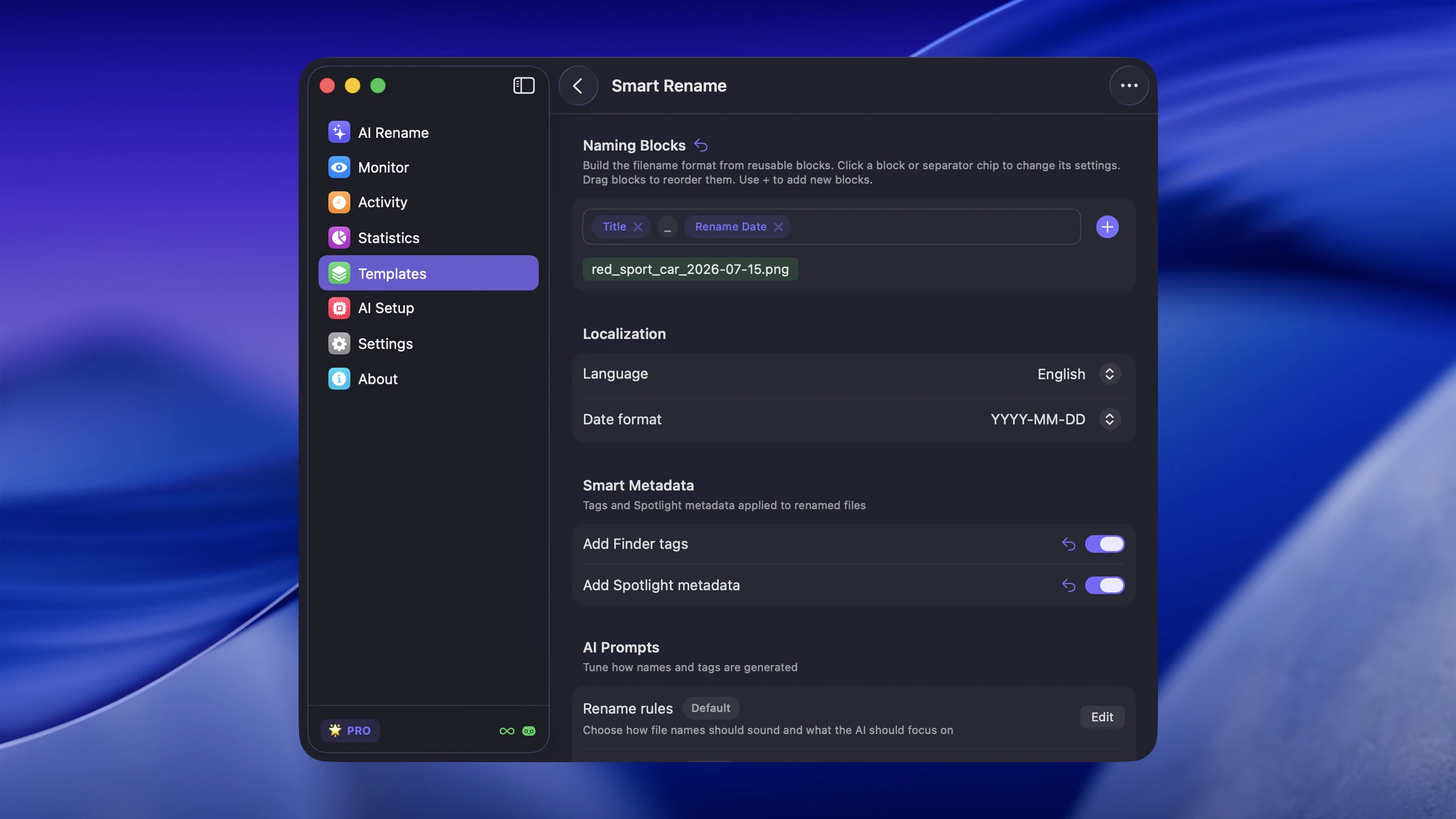
- Enter the grouping instruction in Folder rules. Naming Blocks set the filename format separately.
- Enable Reuse existing folders if suitable groups already exist inside the destination root. Zush can create a new folder when none fits.
- Review both the proposed names and folder groups. Correct folder names or file placement before applying the batch.

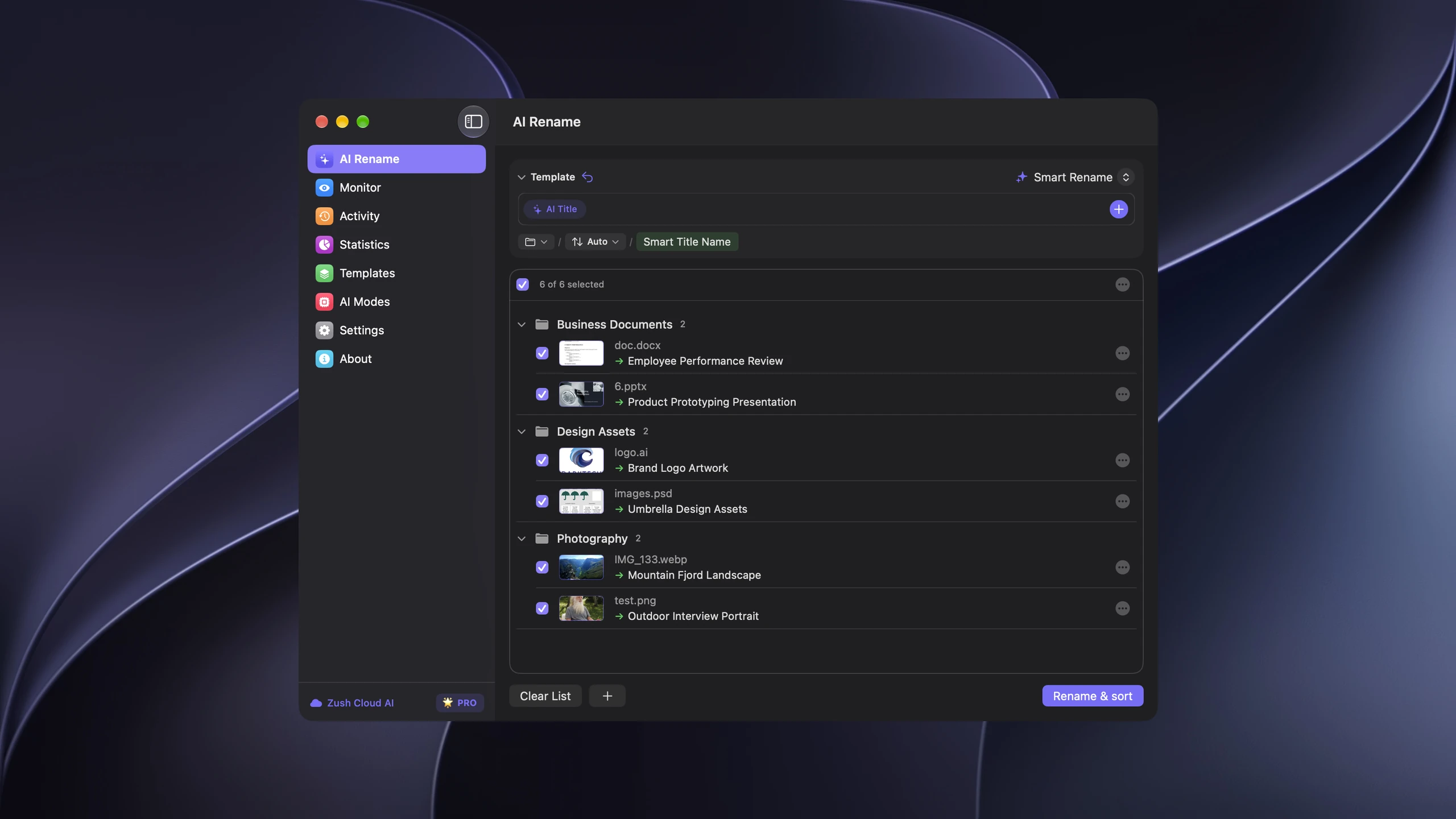
Save the tested destination and rules in the Template. Assign it to Monitor to rename and sort new files arriving directly inside the watched folder. This does not retroactively reorganize files already processed. With sorting off and the original destination selected, files keep their current folder.
Use ordinary exported images or a copied Finder/File Explorer folder. Do not reorganize a Photos library package; for originals tracked by a catalog, follow its rename or relink workflow. Folder grouping does not add albums, face recognition, duplicate removal, or backup.
Follow the step-by-step Mac sorting guide or see the folder sorting documentation and 30 example Folder rules.
How we compared Mac photo organizers
We compared each app against six jobs that matter after the first import:
- Library model: managed library, catalog, ordinary Finder folders, or a mixture.
- Retrieval: albums, people, dates, locations, metadata, natural-language search, or filenames.
- RAW workflow: whether the app is designed for large camera imports and professional selection.
- Device access: Mac-only, Apple ecosystem, cloud sync, or private multi-device sync.
- File control: whether original folders stay visible and portable outside the app.
- Cost and exit risk: subscription, perpetual license, optional storage, and what remains usable if you stop paying.
The comparison is based on published capabilities, not a synthetic benchmark. Search quality depends on the library, language, file formats, and how much metadata already exists. Test the finalists with a copied folder before moving an archive or committing to a catalog.
1. Apple Photos: best free choice for personal libraries
Apple Photos is the sensible default for a personal library built around an iPhone and Mac. It groups images by time, people, pets, places, trips, albums, and recognized subjects. The Duplicates collection can identify duplicate photos and videos and merge them while retaining one original.
The app stores imported images inside a Photos library by default. That managed approach removes daily file handling, but it also means the library should be accessed through Photos rather than edited manually in Finder. Apple supports additional libraries and referenced files, although only the System Photo Library participates fully in iCloud Photos.
Best fit for: family photos, iPhone users, casual editing, albums, shared libraries, and people-based browsing.
Watch out for: iCloud Photos is synchronization, not a second independent backup. A deletion syncs across devices. Keep a separate backup of the library or exported originals. Referenced files also need their own backup, and moving them in Finder can break the link in Photos.
2. Adobe Lightroom: best for editing and cloud access
Adobe Lightroom combines editing with albums, stacks, ratings, flags, keywords, metadata, People view, Smart Albums, and search by content or natural-language description. The standalone Lightroom plan was listed at $11.99 per month on an annual commitment with 1TB of cloud storage when checked; it also included Lightroom Classic.
Lightroom is relevant when the same application must ingest, edit, organize, sync, and deliver images. A wedding photographer can rate a shoot, filter by camera or lens, group selects in an album, edit the keepers, and access the synced library on another device.
The important distinction is between cloud-focused Lightroom and Lightroom Classic. Lightroom emphasizes a synced cloud library. Lightroom Classic is a desktop catalog with deeper file-system control and a more traditional professional workflow. Decide which library model you want before importing a large archive.
Best fit for: photographers who want strong editing, cross-device access, content search, ratings, and delivery in one ecosystem.
Watch out for: subscription cost and cloud dependence. Adobe’s People view documentation says face analysis for synced Lightroom libraries runs in the cloud. Privacy-sensitive archives may fit a local-first catalog better.
3. Mylio Photos: best for private multi-device libraries
Mylio Photos creates one library from photos and videos stored across computers, phones, tablets, and attached drives. Its local-first model can preserve an existing folder structure, use peer-to-peer device connections, and keep optimized previews on smaller devices while originals remain on storage you control.
Organization includes folders, albums, face tagging, keywords, metadata, a map, and the LifeCalendar. Mylio also provides duplicate and similar-photo cleanup. Its official materials say facial recognition and other analysis run on the user’s devices rather than requiring images to be stored on Mylio’s servers.
The base Mylio Photos application is free. Photos+ adds broader device synchronization, protection, and backup features; the public offer checked listed annual billing from $8.33 per month or $9.99 monthly.
Best fit for: large family archives spread across Mac, Windows, mobile devices, NAS, or external drives, especially when cloud independence matters.
Watch out for: multi-device protection still needs a deliberate storage plan. Optimized previews are not substitutes for original files, and a synchronized copy is not automatically an offline backup.
4. Capture One Pro: best for RAW editing and tethered shoots
Capture One Pro is primarily a professional RAW editor and tethering system, but its organization tools are substantial. Photographers can choose between long-lived Catalogs and project-oriented Sessions, then use albums, Smart Albums, filters, ratings, color tags, keywords, and culling tools.
Sessions are useful when each job should remain portable and self-contained. Catalogs are better for searching a broader archive. This separation suits commercial, studio, fashion, product, and event photographers who need to organize images from capture through final export.
Capture One sells both subscriptions and perpetual desktop licenses. The perpetual route suits photographers who can stay on one compatible version, while the subscription provides continuing updates and current camera support.
Best fit for: RAW-heavy professional work, tethered capture, color-critical editing, culling, and project-based organization.
Watch out for: Capture One is more application than a casual family library needs. Its strongest advantages are editing and capture workflow, not automatic recognition of decades of personal snapshots.
5. Excire Foto 2027: best for local AI catalog search
Excire Foto 2027 is a standalone local photo and video manager built around AI retrieval. It can search for content, faces, scenes, visible text, moods, activities, and similar images without requiring manual tags for every file. It also offers duplicate search, automatic keywording, map and timeline views, and tools for evaluating or culling a shoot.
Excire states that its analysis runs locally and that photos are not sent to third parties. The 2027 release is available as a one-time purchase rather than a subscription; the company listed a $249 regular price after its launch promotion and a 14-day trial.
Excire targets users who want AI search without a cloud-first Lightroom library. It is retrieval-focused and adds another catalog rather than improving the filenames themselves.
Best fit for: private local archives, visual search, face recognition, duplicate cleanup, and photographers who prefer a perpetual license.
Watch out for: AI search adds another catalog and preview database that needs space and backup. Verify current macOS and processor requirements before buying.
6. Photo Mechanic Plus: legacy metadata catalogs
Photo Mechanic Plus combines Photo Mechanic’s ingest and selection workflow with a catalog database that can span many folders, drives, and offline media. It is designed to browse very large archives quickly and find images using metadata, filters, saved searches, and collections.
This is a different kind of intelligence from visual AI. Photo Mechanic Plus excels when a newsroom, sports photographer, agency, or archive already uses disciplined IPTC captions, keywords, ratings, dates, cameras, and locations. Its catalogs can represent media on drives that are not currently mounted.
Availability update: Camera Bits discontinued new purchases of Photo Mechanic Plus in February 2026 after catalog stability problems. Existing users should discuss migration with support. Standard Photo Mechanic remains available, but it is not a replacement catalog. Choose another catalog for a new archive.
Relevant to: existing Photo Mechanic Plus users planning a catalog migration.
Watch out for: it does not replace a full RAW editor or automatically understand every untagged image by visual content. Do not start a new archive in the discontinued Plus catalog.
Zush: content-aware names and AI folders in Finder
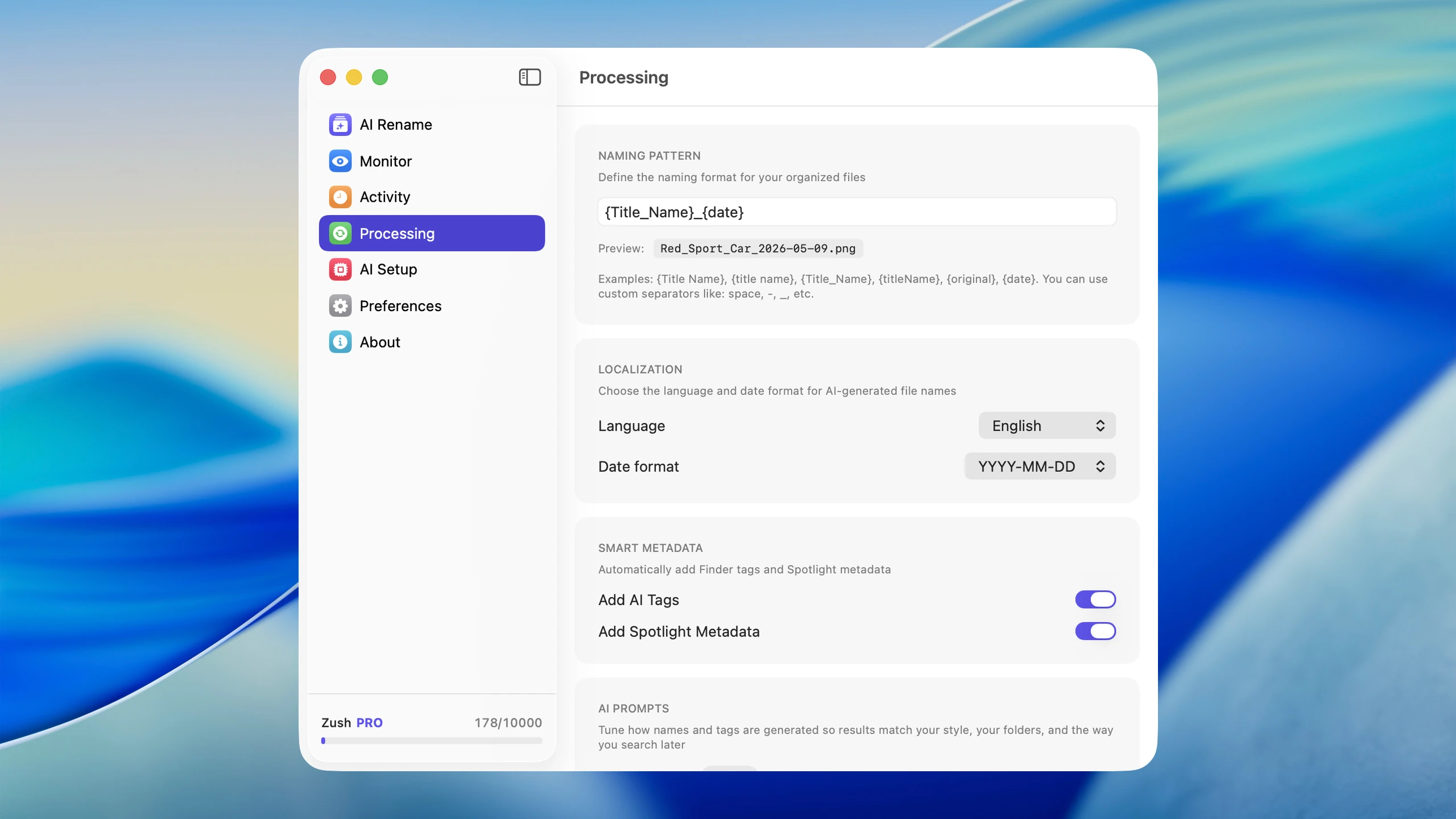
Use Zush for supported photos in ordinary Finder folders. It proposes descriptive names and optional content-based folder groups (beta); it does not provide albums, face browsing, editing, duplicate detection, culling, or cloud photo storage. If those are the jobs you need, choose a library manager above.
The AI photo renamer proposes descriptive names for HEIC, JPG, PNG, and supported RAW files. A photo can change from DSCF4821.RAF to 2026-08-11_Night-Market-Food-Stalls.RAF while staying in the same Finder folder. Templates and Naming Blocks can combine content descriptions with EXIF dates and counters; review each suggestion before applying the batch, and use Rename History to restore the original names if needed.
Test on a copied folder or exported images first. Rename before importing into a catalog where possible. Do not rename files inside a Photos library package, or rename originals tracked by another catalog without following that app’s rename or relink workflow. The photo renaming guide covers the filename step in detail.
Which Mac photo organizer should you choose?
Use this decision path:
- Choose Apple Photos when the library comes mostly from an iPhone and you want albums, people, places, and shared libraries with minimal setup.
- Choose Lightroom when editing and cloud delivery should live in the same subscription and synced library.
- Choose Mylio Photos when a private library must span devices and storage locations without depending on one cloud provider.
- Choose Capture One Pro when tethering, RAW editing, color work, and professional culling drive the workflow.
- Choose Excire Foto when local AI search, face recognition, and duplicate cleanup matter more than cloud access.
- Existing Photo Mechanic Plus users should plan catalog migration with Camera Bits support. For a new archive, choose another catalog above.
- Choose Zush for descriptive names and content-based groups in ordinary Finder folders, with a preview before applying.
For many photographers, the best answer is a pair rather than one app. A library can provide catalog search, culling, editing, collections, or device sync, while descriptive filenames remain useful in Finder, exports, external drives, and client handoffs. If you combine tools, rename before importing where possible and follow the catalog application’s relink workflow for files it already tracks.
A safe test before moving your whole library
Copy 50 representative images into a test folder: recent iPhone HEIC files, older JPEGs, several RAW formats, edited exports, screenshots, Live Photos if relevant, and a few files with weak or missing dates.
Then check:
- Can the app find a photo by person, place, date, subject, rating, and filename?
- Does it preserve RAW files, sidecars, edits, Live Photos, and metadata correctly?
- Can you export originals without losing the folder or filename context you need?
- What happens when a source drive is disconnected or a file moves?
- Is there a documented backup and restore path for both originals and the catalog database?
- Will the pricing still make sense when the library and device count grow?
Do not delete the old library after the first successful import. Keep it unchanged until the new system has survived an import, search, edit, export, backup, and restore test.
For the complete folder and backup system around the software, use How to Organize Photos on Mac. The HEIC and RAW management guide covers formats, sidecars, conversions, and archive layout.
Frequently asked questions
What is the best photo organizing software for Mac?
Apple Photos is the best free starting point for most personal Mac libraries. Mylio is stronger for a private library across devices and drives; Lightroom and Capture One suit editing-led workflows; Excire focuses on local AI retrieval; Photo Mechanic Plus is a discontinued option for existing catalogs; and Zush names and optionally sorts ordinary Finder files without creating a new catalog.
What is the best free photo organizer for Mac?
Apple Photos is included with macOS and is the best free starting point for a managed personal library. Mylio has a free base application for a private multi-device library, while Finder itself remains free for folder-based organization. Zush includes 50 renames for testing descriptive filenames but is not a free full-library manager.
Is Apple Photos good for professional photographers?
Apple Photos can handle selects, albums, and delivery for lighter professional use, but Lightroom and Capture One provide deeper editing, culling, and tethering workflows; standard Photo Mechanic can handle ingest and IPTC metadata. Zush is useful alongside them when descriptive filenames must survive exports, client handoffs, external drives, and catalog changes.
What is the best photo organizer without a subscription?
Apple Photos is included with the Mac. Excire offers a one-time purchase for local AI catalog search, while Capture One offers a perpetual desktop license for editing. Photo Mechanic Plus is no longer available for new purchase. Zush has a one-time PRO option for content-aware names and optional AI folder sorting in ordinary folders.
Can AI organize photos stored on an external drive?
Yes. Mylio, Capture One, and Excire can catalog images stored on external drives, with different tradeoffs for sync, editing, local AI search, and metadata. Zush can rename supported photos on an accessible external drive and optionally sort them into subfolders (beta). Keep an independent backup and understand any relink process before renaming sources that a catalog already tracks.
Should I organize photos by folders or use a catalog?
Use folders when portability, direct Finder access, and simple backup matter most. Use a catalog when you need collections, ratings, face or content search, culling, and editing without duplicating files. A durable hybrid uses a clear Year/Project folder structure underneath a catalog, plus descriptive filenames that remain useful if the catalog is unavailable.
Verdict
For a personal Mac and iPhone library, start with Apple Photos and a separate backup. Choose Mylio when the archive must remain private while spanning devices and drives; Lightroom or Capture One when editing defines the workflow; Excire for local AI retrieval. Existing Photo Mechanic Plus archives need a migration plan; it is no longer a new-purchase option.
Choose Zush when supported photos in Finder, client folders, external drives, exports, or archives need descriptive filenames, content-based groups, or both. It can complement a catalog, but it solves a different problem rather than replacing the library, editing, culling, or backup features of the other apps.


